
You’ve launched your Shopify store… now, how do you get people on your site without paying for ads? This beginner’s guide to Shopify SEO is written for DIY store owners like you. We’ll break down exactly where to start with SEO: from understanding how search engines find your site to the key first steps that will boost your visibility. SEO (Search Engine Optimization) might sound technical, but with a little guidance, you can handle the basics yourself and start attracting free, high-quality traffic. Let’s dive into the why and how of SEO for Shopify so that you can build a strong foundation for long-term success.
First, you may want to grab this quick download — our Shopify SEO Starter Kit.
Free Download: Shopify SEO Starter Kit
Make your Shopify store easier to find on Google with our free SEO Starter Kit. Inside, you’ll get step-by-step checklists, templates, and quick wins to boost visibility and sales.
Shopify SEO 101: What It Is and Why It Matters
How Search Engines Work (in a Nutshell)
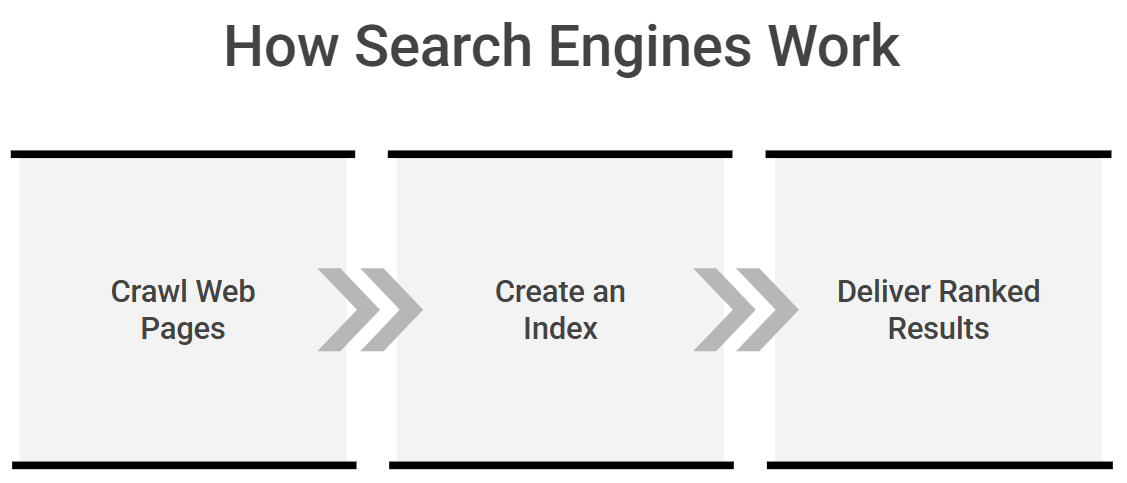
Search engines like Google use bots to crawl web pages, then index (store) them in a giant database. When someone searches for a keyword, Google’s algorithm ranks relevant pages based on many factors (quality, relevance, speed, etc.) and displays the results. In short, improving your Shopify store’s SEO means making it easier for search engines to understand and trust your site so that your pages show up higher when people search for products you sell.
What “SEO” Means for an E-commerce Store
Shopify SEO involves optimizing your online store’s structure and content so that your product pages, collection pages, and other content appear in search results. Unlike blogs or service sites that mostly target informational keywords, e-commerce stores must focus on commercial keywords (product names, categories) and some informational queries (via blog posts or guides). For example, you’ll optimize product and category pages for searches like “buy ” or “ for sale,” because these indicate shopping intent. The most important Shopify SEO tasks include optimizing product and collection pages (titles, descriptions, images, etc.) and ensuring your site is structured for easy crawling. In short, SEO helps match your store’s pages to the people already searching for what you offer.
How to Think about SEO Strategy for eCommerce Stores
Why SEO Matters for Shopify Stores
Organic search traffic is the lifeblood of many online stores. Some stats to consider: Google’s organic search results drive about 57–60% of all website traffic globally. In fact, the #1 result on Google gets roughly 27% of all clicks, while results on page 2 get virtually none (only ~0.6% of searchers click anything on the second page). If your Shopify store isn’t ranking on page 1, you’re almost invisible to potential customers. SEO also delivers better ROI over time than paid ads. You invest effort upfront, and the traffic can snowball without ongoing ad spend. For a DIY store owner on a budget, mastering SEO means free, consistent traffic. Plus, showing up in search builds trust and brand awareness. Shoppers tend to click the organic results they see first, and being high on the page signals that your store is authoritative.
Investing time in SEO will help bring a steady stream of ready-to-buy visitors to your Shopify site, without constantly paying for ads.
Free Download: Shopify SEO Starter Kit
Make your Shopify store easier to find on Google with our free SEO Starter Kit. Inside, you’ll get step-by-step checklists, templates, and quick wins to boost visibility and sales.
Preparing Your Shopify Store for SEO Success
Before diving into keywords and content, make sure your Shopify store’s basic setup is SEO-friendly. Tackling these foundation steps early will set you up for quicker wins:
- Secure a Custom Domain: Ditch the default yourstore.myshopify.com address. Move your store to a custom domain that reflects your brand (e.g., yourstore.com). Shopify lets you change your primary domain in the admin settings. A custom domain looks professional and is easier for customers to remember. It also helps with SEO credibility; your brand name in the URL can instill trust and signal a legitimate business.
- Use a Fast, Mobile-Friendly Theme: Choose a responsive Shopify theme that looks good and loads fast on mobile devices. Google now uses mobile-first indexing, meaning it predominantly crawls your site as a mobile user. If your mobile site is clunky or slow, your rankings will suffer. Optimize your theme by limiting heavy features: use high-quality images in the right format (JPEG/PNG), but compress them to reduce file size. Remove unnecessary apps or scripts that bloat load times. Aim for under 2-3 seconds page load time on mobile. Fast and mobile-friendly = higher SEO scores and happier shoppers.
- Set Up Google Analytics and Search Console: These free tools are a must for any site owner. Google Analytics 4 (GA4) lets you track your visitors and see which pages or products get traffic. Google Search Console (GSC) shows how your site performs in search and alerts you to SEO issues. Install GA4 on your Shopify store and verify your site in GSC as soon as possible. This way, you can monitor what keywords people use to find you, submit sitemaps, and fix errors (like broken links or mobile usability problems) that Google flags. It’s a DIY SEO dashboard that will guide your improvements over time.
- Submit Your Sitemap to Google: Shopify automatically generates a sitemap file (sitemap.xml) that lists all your store’s pages. After your Search Console is set up, submit this sitemap URL in the GSC Sitemaps section. This helps Google discover all your product and collection pages more quickly. (Shopify also auto-updates the sitemap when you add new products, so you generally only need to submit it once.) Ensuring Google has your sitemap makes crawling your site easier, which means your pages can get indexed and start ranking faster.
- Know Shopify’s Built-In SEO Features (and Limits): Shopify does a lot of SEO heavy lifting out of the box, which is great for beginners. For example, Shopify automatically adds canonical tags to your pages to prevent duplicate content issues and generates a basic robots.txt for you. It also creates SEO-friendly title tags for your pages by including your store name by default. However, there are many things Shopify doesn’t do unless you do them. It won’t write your meta descriptions or alt text. You have to fill those in yourself for each product, collection, and blog post. Likewise, Shopify’s default structured data markup might be limited (basic product schema is included in many themes, but you may need an app for more advanced schema). Understanding this division of labor is important: Shopify gives you a good SEO starting point, but optimizing content is up to you.
- Install an SEO App (Optional): While not required, many DIY store owners find it helpful to add a Shopify SEO plugin for extra guidance. For instance, an app like SearchPie or Yoast SEO for Shopify can provide audits and checklists (for meta tags, broken links, etc.), while apps like TinyIMG or SEO Image Optimizer can bulk-compress images and add alt tags. You might hold off on too many apps initially, but know that if you encounter a limitation in Shopify (say, you want to manage schema markup or need a more robust blog editor), there’s likely an app to help. In the tools section at the end of this guide, we’ll suggest a few top SEO apps to consider.
Keyword Research for Shopify Stores
Once your site’s basics are in place, the first real SEO task is finding out what your potential customers are searching for so you can target those terms on your site. Here’s how to tackle keyword research as a beginner:
Brainstorm “Seed” Keywords
Start by listing the obvious terms related to your products. If you sell office furniture, for example, seed keywords might be “standing desk,” “ergonomic chair,” and “monitor stand.” These are your core product names or categories. Think like a customer: what would someone type into Google if they wanted a product like yours? Make a list of these basic keywords first. Then, expand on them with more specific phrases.
Find Long-Tail Variations
Long-tail keywords are longer, more specific search phrases (often 3+ words) – like “white standing desk for home office” instead of just “standing desk.” Long-tail terms usually have lower search volume but also lower competition and higher buyer intent. Use Google’s own suggestions to discover these: type your seed term into Google and see the autocomplete suggestions and the “Related searches” at the bottom of the results. For instance, typing “running shoes” might show “running shoes for flat feet” or “best running shoes 2025” as suggestions. Those are valuable long-tail ideas. You can do the same on Amazon’s search box for product-focused suggestions. Aim to gather a mix of keywords: some broad (head terms) and many long-tail (specific phrases), so you can optimize pages for both types.
Use Keyword Research Tools
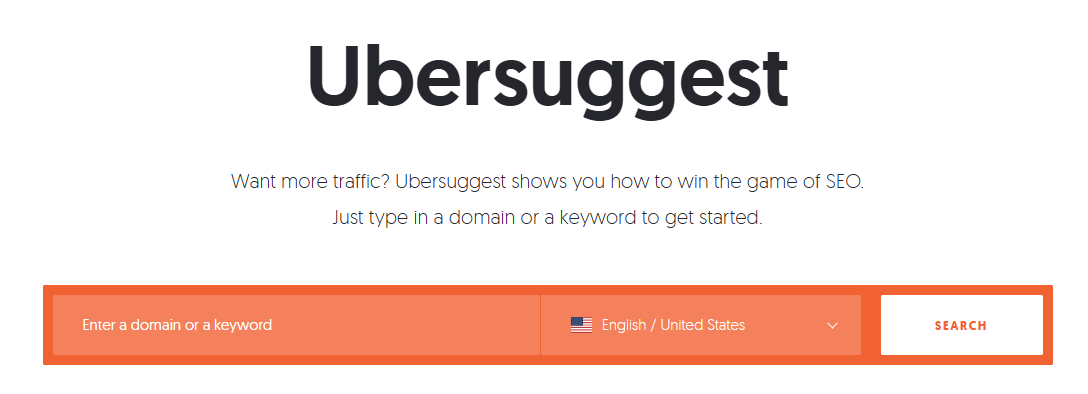
Leverage free or cheap SEO tools to dig deeper into keyword data. Good options for beginners include Ubersuggest (free with limited searches) and Moz’s Keyword Explorer (free trial available). These tools let you input a keyword and see how many people search it monthly (search volume), how competitive it is, and suggestions for related terms. For example, if you enter one of your seed keywords, you might discover dozens of related queries. Pay attention to a few metrics: search volume (how popular the term is), keyword difficulty (how hard it might be to rank, often on a 0-100 scale), and search intent (what the searcher is likely looking for). As a beginner, you’ll want to target keywords that have a decent volume but aren’t ultra-competitive. Many tools label difficulty; aim for mid-to-lower difficulty terms that still get searches. For instance, a term like “best budget gaming chair” might be easier to rank for than just “gaming chair” and still have interested searchers. Build a list of potential keywords for each of your product categories.
Focus on Buyer Intent
Not all traffic is equal. You want visitors who are ready to buy or at least interested in products. So prioritize commercial and transactional keywords in your research. These include words like “buy,” “for sale,” “price,” or specific product names and models (they indicate the person is shopping around or looking to purchase). For example, “best noise-cancelling headphones” or “buy noise-cancelling headphones under $100” show commercial intent. On the other hand, informational searches like “how to clean headphones” might be less directly valuable, unless you use content to pull them in. A quick way to judge intent is to see what Google shows: if you Google a term and the results are mostly product pages or category pages, that keyword likely has purchasing intent. If the results are blog articles or forums, it’s more informational. As a Shopify store owner, lean into keywords that show intent to buy or compare products; these are the visitors who can turn into customers.
Organize and Prioritize Keywords
After brainstorming and tool research, you might have a large list of keywords. The next step is to organize them into groups and decide which ones to tackle first. Group keywords by relevance to your site structure: for instance, you might group “standing desk, adjustable standing desk, sit-stand desk” together as a cluster around the same topic. These could all be targeted on your Standing Desks collection page or a single guide about standing desks. Identify a focus keyword for each important page on your site (product page, collection page, homepage, blog post) and a few secondary keywords that are closely related. Prioritize keywords that have high relevance to your actual products and moderate search volume (you want traffic, but quality traffic). It’s often smart to start with somewhat specific keywords where you can realistically rank, rather than the single-word terms dominated by big brands. For example, “organic cotton baby blankets” might be a better focus than trying to rank just for “blankets.” The sweet spot is keywords that lots of your potential customers search, but where competition isn’t sky-high. Those will give you quicker SEO wins.
Free Download: Shopify SEO Starter Kit
Make your Shopify store easier to find on Google with our free SEO Starter Kit. Inside, you’ll get step-by-step checklists, templates, and quick wins to boost visibility and sales.
Organizing Your Shopify Site Structure & Navigation
Your site’s architecture plays a huge role in SEO. A clear, logical structure helps search engines crawl all your pages and helps shoppers find what they want (which boosts engagement and conversions). Here’s how to structure your Shopify store for maximum SEO benefit:
A simple, shallow site architecture (with a few broad categories linking to all products) is ideal for Shopify SEO. Keeping every page only a few clicks from the homepage helps search engines crawl your site and improves user navigation.
Use Logical Collections (Categories)
In Shopify, “Collections” are your category pages. Plan your collections in a way that makes sense for your products and for search engines. Each main product category should ideally have its own collection page. For example, if you sell clothing, you might have collections for Men, Women, Accessories, etc., and within those, sub-collections (e.g., Women > Dresses, Women > Tops). However, avoid making the structure too deep; two levels (main collection and sub-collection) are usually enough for a beginner store. Link your key collections in the main menu so they’re one click from the homepage. Every product should belong to at least one collection, and important sub-collections should be accessible via dropdown menus or category links. This way, nothing is orphaned deep in your site. A simple rule of thumb: any product should be reachable in no more than 2-3 clicks from your homepage (homepage → category → product). This flat structure concentrates SEO authority and makes crawling easier.
Avoid Duplicate Content via Navigation
Be mindful of how Shopify creates URLs for products in multiple collections. Shopify will generate a primary URL for each product (usually yourstore.com/products/product-name). If a product is listed in a collection, it might also be accessible at yourstore.com/collections/collection-name/products/product-name. Fortunately, Shopify automatically sets a canonical URL to the main product page to avoid SEO duplication. Still, you should consistently link to the canonical version (usually the non-collection URL) when linking products in menus or text, just to be safe. Also, try to avoid having multiple pages that have largely the same content. For example, don’t create separate collections for “Cheap Widgets” and “Affordable Widgets” if they show the same products. Pick one and stick with it, or combine them. Consolidating similar content into one strong page is better than splitting SEO power across duplicates.
Internal Linking Strategy
Leverage internal links to spread link equity (SEO value) around your site and help users discover more products. There are a few key places to add internal links:
- Main Navigation & Footer: As mentioned, the top menu should link to your most important collections. The footer menu is another place to include links to important pages (popular product categories, FAQ, contact, etc.). Shopify footers often have room for menu links. Use it to ensure every major section is linked somewhere.
- Cross-Link Products and Collections: Within product descriptions, link to related products or categories when it feels natural (e.g., “Check out our full Winter Jackets collection for more styles”). On collection pages, you might write a short intro and link to a featured product or a relevant guide. Every page should have at least one link to it from elsewhere on your site (to avoid orphan pages), and likewise, each page (especially content-rich pages like blog posts) should link out to other relevant pages on your site. This creates a web of connections that search engines can easily crawl.
- Contextual Blog Links: If you have a blog (more on that later), use it to support your product pages. Write articles related to your products and include links within the text to specific items or categories. For example, a blog post on “How to Choose the Right Running Shoes” can link directly to your “Running Shoes” collection or a best-selling product. This not only helps SEO but also funnels readers toward making a purchase.
- Anchor Text: When creating internal links, use descriptive anchor text. The clickable words should indicate what page you’re linking to. Instead of “click here,” use a phrase like “summer sandals collection” or “blue sundress” as the anchor. If it makes sense, include keywords in your anchor text for extra SEO relevance. Just don’t overdo it with exact-match keywords every time; keep it natural and helpful for the user.
- Don’t Overlink: Internal linking is good, but too many links can be distracting. Aim for a balance. For instance, a blog post of 1000 words might include 5-8 internal links spread logically. In product descriptions, you might add a couple of links if relevant (like linking from a running shoe product to socks or to the shoes category). A few well-placed links per page is enough; you don’t need to hyperlink every other word. Google and users will value quality over quantity here.
No Orphan Pages
An orphan page is a page on your site that isn’t linked to from anywhere else on your site (so the only way to find it is via a direct URL or sitemap). Orphan pages are bad for SEO because crawlers might miss them, and users definitely will. After you build your menus and links, double-check that every product, collection, and content page is linked somewhere logical (navigation menu, another page, etc.). Shopify’s default structure usually prevents orphans (new products go into the “All Products” collection, which is linked, etc.), but if you create custom pages (like a lookbook or a special landing page), be sure to link them. You can use tools like Shopify’s Search Console coverage report or an SEO crawler to find orphan pages, or simply ensure your navigation strategy covers everything important.
On-Page SEO for Shopify: Optimizing Content & Meta Tags
Now let’s get into optimizing the content on your pages: titles, descriptions, headings, and images. On-page SEO ensures that each page on your Shopify site clearly signals to Google what it’s about and which keywords it should rank for, while also persuading human visitors to buy. Here are the on-page elements to focus on:
Unique & Keyword-Rich Page Titles (H1s)
Every page (homepage, product page, collection, blog post) has a main title, usually rendered as an H1 heading on the page. In Shopify, your product name becomes the H1 on the product page, the collection name is the H1 on the collection page, etc. You should make sure these titles are descriptive and include keywords when appropriate. For example, instead of a vague product title like “Model #X123”, use “Men’s Leather Hiking Boots – Model X123”. Include primary keywords a shopper might use (e.g., “leather hiking boots”). Keep titles succinct and user-friendly. If they get too long, they may be truncated in search results, and customers might find them confusing. Also, avoid redundant titles; each page should have a distinct title (don’t call two different products “Summer Dress” – differentiate them: “Summer Dress – Floral Print” vs “Summer Dress – Blue Maxi”).
SEO Page Titles & Meta Descriptions
Shopify allows you to edit the page title and meta description for each page (this is the text that appears in Google’s search results snippet). By default, if you don’t edit them, Shopify will just use your page title and an excerpt of content, but it’s best to customize these.
Meta Title – This is often similar to your on-page H1, but you can append modifiers for SEO and click appeal. For instance, your product page H1 might be “4K HD Drone Camera”, and your meta title could be “4K HD Drone Camera – Free Shipping & 2-Year Warranty | YourStoreName”. Keep meta titles around 50-60 characters so they don’t get cut off.
Meta Description – Write a compelling 1-2 sentence summary of the page, around 150–160 characters. Include your target keyword and a call-to-action or value proposition. Example: “Shop our 4K HD Drone Camera – featuring 60min flight time and stabilizer. Free shipping on orders $50+. Capture stunning aerial footage today!” A well-crafted meta description can improve your click-through rate from search results, even though it’s not a direct ranking factor. It should entice the searcher by highlighting benefits, offers, or unique selling points, and include a relevant keyword so it bolds in the results (which catches the eye).

Product Descriptions with Depth
One common mistake is to use the manufacturer’s generic product description or to keep the product copy very short. For better SEO and conversions, write original, detailed product descriptions for every item. Google rewards unique content. If dozens of stores all use the same supplier description, none of them stand out. Aim to answer any question a buyer might have about the product right on the page: dimensions, materials, use cases, compatibility, etc.
More content (within reason) gives Google more clues about your page. Many top-ranking product pages have 500+ words of description, including specs and even storytelling. Use clear formatting: short paragraphs, bullet points for features, and subheadings if needed. Sprinkle in your target keywords and related terms naturally. For example, if the product is a “wireless gaming mouse”, mention variations like “wireless mouse for gaming”, “Bluetooth gaming mouse”, etc., as long as it reads naturally. This can help you rank for long-tail variations. Additionally, robust content keeps customers engaged and can reduce “thin content” issues that plague many e-commerce sites. If writing a lot for every product is impractical (say you have hundreds of items), prioritize your best-selling or most important products first, or those on page 2 of Google that just need a boost to reach page 1.
Optimize Collection Pages
Category pages (collections) are often the unsung heroes for SEO. They can rank for big generic terms (e.g., “Men’s Running Shoes” category page can rank for “mens running shoes”). Don’t leave them blank or just a wall of product thumbnails. Add at least a brief introduction paragraph on your collection pages describing the category in general and what the user will find.
For example: “Men’s Running Shoes: Discover our range of high-performance running shoes for men, featuring top brands like X and Y. Whether you need trail runners for rugged terrain or lightweight sneakers for road training, we have options to fit every style and budget.”
This kind of copy (50-150 words) with some keywords can significantly improve the SEO relevance of the page. Make sure each collection has a unique description; if two collections are similar, clarify the differences in their content. Also, optimize the collection page’s meta title and description just like a product page. For instance, a meta title for a collection could be “Men’s Running Shoes – Lightweight & Cushioned | YourStore” and a meta description might mention the product range and a CTA (“Browse 50+ styles of men’s running shoes – get free shipping on orders $75+”). Additionally, use headings (H2, H3) on collection pages if you write longer content or guides on them. Some stores include a mini buying guide or FAQ below the products on a category page. If you do, break it up with subheadings for readability and SEO structure.
Image Optimization (Alt text & file names)
Images are crucial in e-commerce, but search engines can’t “see” images; they rely on clues. Always fill in the alt text for your product images and any other images on your site. Alt text should briefly describe the image and include a keyword when relevant. Example: an image of a shoe could have alt text “Red women’s running shoe side view – Model X”. This not only helps with SEO (potential to rank in Google Images, improved accessibility) but also is important for screen readers (visually impaired users). Next, name your image files intelligently before uploading if possible. Instead of IMG001.jpg, use a file name like red-womens-running-shoe.jpg. It’s another small relevance signal.
Also, compress your images so they don’t slow down your page speed. You can use an app or tool to reduce file size without major quality loss. Many Shopify SEO apps (or dedicated image optimizer apps) can auto-generate alt tags and compress images in bulk. This is a quick win for better SEO and a better user experience since faster-loading images keep shoppers around.
Use Schema Markup (Structured Data)
Structured data is code that helps search engines understand the context of your content. For a beginner, the key types of schema markup for Shopify are Product schema (telling Google details like price, availability, and reviews on a product page) and Organization/Website schema (basic info about your store).
The good news: Shopify automatically includes basic product schema in many themes. Things like price, currency, and availability are often baked in. However, you might consider adding or improving the schema to get rich results (like star ratings in search results). Apps like Schema Plus for SEO can automate this. With one click, they add comprehensive markup for products, collections, and more.
But why bother? Because rich snippets (e.g., star ratings, review counts, price range showing up directly on Google) can greatly improve your click-through rate. They make your results more eye-catching and informative. For example, a search result that shows “★★★★★ (124 reviews) $49.99 in stock” will likely attract more clicks than one without. As a beginner, you don’t need to code a schema yourself by either using a well-coded theme or an app to handle it. But do be aware that this is part of on-page SEO. It’s a bit more “technical,” yet it directly ties into how your pages appear on the search page. Consider implementing at least the basics (Product schema, maybe FAQ schema if you have a Q&A section, etc.) to stand out.
Encourage User-Generated Content
An often overlooked aspect: reviews and Q&A content on product pages. Enabling product reviews (via Shopify’s Product Reviews app or other review apps) not only builds trust with shoppers but also adds keyword-rich content to your pages that you didn’t have to write. For example, a customer review might mention “I love the comfort of these running shoes!”, adding semantic keywords that help your SEO. Google can even showcase star ratings from reviews in search results if your schema is set up (double win!). Similarly, a Q&A section (where customers ask questions and you answer) creates more useful text on the page (and often contains long-tail keywords in the questions). Just ensure any review app you use is providing schema markup for the ratings. This kind of content keeps pages fresh and engaging, which search engines notice over time.
Don’t Forget Calls to Action (CTAs)
While not an “SEO factor” per se, having clear CTAs on your pages can improve user engagement, which indirectly can help SEO (if people stick around and interact instead of bouncing). Within your product descriptions or collection descriptions, invite the visitor to take the next step. E.g., “Order now to enjoy free shipping!” or “Have questions? Contact us for quick help.” On blog pages, a CTA might be to check out a product: “Liked these tips? Browse our summer collection to put them into action.” Effective CTAs guide your shoppers and can increase conversions, turning that organic traffic you worked hard to get into actual sales.
Technical SEO Fundamentals (Speed, Mobile & More)
Technical SEO might sound intimidating, but beginners can handle the most important parts on Shopify without needing to code. Here are the key technical factors to be aware of:
Site Speed and Performance
A fast site is crucial. Google uses page speed as a ranking factor. Slower sites may be penalized in rankings. More importantly, users will leave if pages take too long to load. Shopify stores can sometimes get slow due to large images, too many apps, or unoptimized code. To boost your speed:
- Image Optimization: As mentioned earlier, compress images and use the appropriate format (JPEG for photos, PNG for graphics with transparency, etc.). Consider lazy-loading images (Shopify does this natively in modern themes or via apps) so images below the fold load later.
- Minimal Apps: Every app you install can add extra JavaScript/CSS, which can slow things down. Only keep the apps you truly need, and remove any that you aren’t using. If an app adds a feature you only use on one page (like a fancy slider on the homepage), see if you can disable it on other pages.
- Theme Code: Use a well-built theme from the Shopify Theme Store. They generally follow best practices for speed. Avoid heavily animated or overly fancy themes that might look cool but load slowly. Simpler is often better for speed and UX.
- Use Shopify’s Performance Tools: In your Shopify admin under Online Store > Themes > Customize, you might see a theme speed report or you can use Online Store > Theme > View report (Shopify provides a speed score based on Google Lighthouse). Additionally, use external tools like Google PageSpeed Insights or GTmetrix to scan your URL. They’ll give suggestions such as “defer unused CSS” or “reduce DOM size.” Some of those suggestions might require a developer to address in the code, but at least you’ll know where any major bottlenecks are.
- Shopify CDN: The good news is Shopify serves your assets via a fast CDN (Content Delivery Network) by default, so you don’t need to worry about that. Just focus on not bogging it down with oversized media or bloated scripts.
- Aim for Core Web Vitals: Google’s Core Web Vitals metrics (Largest Contentful Paint, First Input Delay, Cumulative Layout Shift) are important for SEO. In plain terms: make sure the main content loads quickly, the site responds fast to input, and things don’t jump around as they load. If you stick to the steps above, you’ll likely hit decent scores on these metrics.
Mobile Usability
Since most shoppers (and Google’s crawler) will see your site on a mobile device first, ensure flawless mobile usability:
- Responsive Design: All Shopify themes in the official store are responsive, meaning they automatically adapt to different screen sizes. Still, test it yourself. Open your site on your phone and a tablet. Is everything readable? Are the buttons large enough to tap? If you have elements like pop-ups, make sure they’re not impossible to close on mobile.
- Mobile Navigation: Sometimes, a beautiful desktop menu becomes a nightmare on mobile. Make sure your mobile menu (usually a hamburger menu) is easy to use. Consider using collection filters and search to help mobile users find products quickly, since they can’t see a wide menu at once.
- Avoid Flashy Desktop-Only Features: Some stores have auto-playing videos, wide image sliders, or heavy animations that work on desktop but could slow down or break on mobile. Either disable these on mobile or use them sparingly. For example, if you have a video background on a desktop, see if your theme allows a static image fallback on mobile.
- Test in Google’s Mobile-Friendly Test: Use Google’s free Mobile-Friendly Test tool (just Google it and input your URL). It will tell you if there are any issues on mobile, like clickable elements too close together or content wider than the screen. Shopify themes typically pass this, but custom HTML in page content or certain apps might throw things off so it’s good to check.
Having a mobile-friendly site isn’t just good for SEO; it’s essential for user experience, and a good UX means higher conversion rates from that traffic you’re getting.
Indexing and Crawlability
“Indexing” means getting your pages listed in Google’s search index. We already covered submitting your sitemap, which is a big first step. A few additional pointers:
- Avoid Duplicate/Thin Pages: Don’t try to index useless pages like your cart, checkout, or duplicate content. Shopify, by default, blocks some of these in robots.txt. For example, you don’t want tag filter pages or internal search result pages indexed, as they don’t add value. Stick to indexing your main pages (home, collections, products, blog posts, info pages). If you have a lot of similar pages (like products that only vary slightly), be cautious. If they create thin or nearly-duplicate content at scale, consider whether you need separate pages or if you can consolidate variants on one page.
- Use Canonical URLs: As noted, Shopify auto-canonicalizes product pages, which helps prevent duplicate content issues. If you ever create alternate versions of content (perhaps a “Print-Friendly” page or something), always canonical back to the main page. Most beginners won’t need to mess with canonicals manually, but it’s good to know it exists.
- Broken Links & 404s: If you change a product URL or delete a product, make sure to set up a 301 redirect to an appropriate page (Shopify has a built-in URL redirect tool in the Navigation settings). Broken links (both internal and external) can hurt SEO and user experience. GSC will report crawl errors if Google hits a broken page. Clean these up by redirecting old URLs to new ones (or to the homepage/collection page if the product is gone without a replacement). There are apps that can automate finding 404 errors, or you can rely on Search Console’s coverage report.
- Monitoring: After implementing SEO changes, keep an eye on Search Console for any coverage issues or mobile usability warnings. It’s normal to see a few minor ones, but if Google flags something like “page is not mobile-friendly” or “content wider than screen,” address it. Likewise, check the Index Coverage report for pages that are discovered but not indexed; sometimes it will tell you why (duplicate, crawled but not indexed, etc.). This can guide you on whether Google is having trouble with any pages.
Technical SEO Apps/Tools
If you’re not super techy, you can leverage tools to handle or highlight technical issues:
- SEO Audit Apps: There are Shopify apps that will scan your site for SEO issues (missing alt text, meta tags, broken links). While you can do a lot manually, these apps serve as a nice checklist. For example, SearchPie (mentioned earlier) or Plug In SEO can run audits. They might say “10 products missing meta descriptions” or “5 images missing alt attributes,” then you know where to fix.
- Google Lighthouse: In Chrome, you can run a Lighthouse audit (in DevTools) on any page for performance, accessibility, and SEO basics. This can be technical, but it’s literally a button click, and you get a report with suggestions. It’s a great way to see if your page passes baseline SEO checks (like has a title, has a meta description, etc., which it should if you set those).
- Apps for Specific Tasks: Some technical tasks can be solved with apps, e.g., an app that auto-adds alt text based on product name if you missed some, or an app that manages JSON-LD structured data across the site. Just remember, each app can impact speed, so weigh the benefits.
At a beginner stage, focus on the major wins: speed, mobile, and fixing obvious errors. Those will give you the best ROI. Technical SEO can get more advanced (handling international SEO, advanced schema, etc.), but those are topics for another day.
Essential SEO Tools & Apps for Shopify Beginners
To make your SEO journey smoother, take advantage of some tools and apps that can simplify the work. Here’s a roundup of recommended tools for a DIY Shopify SEO starter kit:
Google Search Console (GSC) and Google Analytics
These were mentioned earlier but deserve emphasis. GSC is your direct line to Google. Use it to monitor keywords, submit sitemaps, and see any crawl/index issues. Google Analytics shows you how visitors behave on your site, which pages are popular, and where traffic is coming from. Both are free and indispensable for measuring SEO progress. (Pro tip: In GA4, you can set up conversion goals like purchases or adds-to-cart to see if your organic traffic is actually converting.)
Keyword Research Tools
For finding and tracking keywords, consider:
- Ubersuggest: A beginner-friendly tool (by Neil Patel) that offers a free tier. It provides keyword ideas, traffic estimates, and even site audits.
- Moz Keyword Explorer: As noted in a Shopify guide, Moz’s tool is available in a limited free version. It’s intuitive for finding related keywords and seeing difficulty scores.
- Wincher: This is a premium tool that professional SEOs use for researching and tracking keyword performance. It might be overkill if you’re just starting, but you have extensive data.

- Google Keyword Planner: Accessible through Google Ads (free to use), it gives rough search volumes straight from Google. It’s geared towards advertisers, but still useful to see ballpark numbers, especially for commercial terms.
Choose one tool and learn its basics – it will help you generate and refine your keyword list over time.
Shopify SEO Apps
One of Shopify’s strengths is its app ecosystem. Here are some top-rated SEO-related apps to consider adding:
- Schema Plus for SEO: As mentioned, this app automatically adds robust structured data to your store. If you want rich snippets (stars, prices in search results) without hassle, this is a good choice. It’s about $15/month after a free trial, and is maintained by ex-Google engineers, ensuring it follows best practices.
- SEO Image Optimizer (SEO: Bulk Image Edit): This free (with upgrades) app helps optimize all your images. It can add alt text in bulk (e.g., set a rule to make alt text = product name + shop name), compress images to improve load speed, and even rename image file names. Since media is often the biggest chunk of an e-store, this app is great for keeping that in check.
- SearchPie (SEO & Speed Optimizer): An all-in-one freemium app that scans your site for SEO issues. It can auto-check meta tags, titles, broken links, etc., and also has some image optimization and speed features. It basically gives you an SEO checklist and fixes some things automatically. Starting at ~$39/month (some features available for free), it’s like having a basic technical SEO assistant.
- Yoast SEO for Shopify: A popular plugin in WordPress, also available as a Shopify app (around $29/month). Yoast gives real-time feedback as you write page content or blogs, rating your SEO optimization and readability. It’s helpful if you’re not sure how well you’ve optimized a page. It also handles some schema and sitemap tasks.
- Bloggle – Blog Builder for Shopify: If content is part of your strategy (and it should be at least eventually), Bloggle is an app that provides a better blogging interface. Shopify’s native blog editor is pretty barebones. Bloggle offers drag-and-drop design for posts, SEO scoring, and templates, so you can create attractive, optimized blog posts that don’t look bland. It starts around $25/month.
- Link Manager or Broken Link Checker: It’s good to have an app that monitors 404 errors and allows you to quickly add redirects. “Broken Link 404/301 Redirect” is an example app. This helps keep your site free of dead ends, which is good for SEO.
- TinyIMG (SEO & Image Optimizer): Similar to SEO Image Optimizer, TinyIMG specializes in image compression, lazy loading, and also includes some SEO auditing tools. Many store owners use either this or SEOBulk; both have their fans.
(Tip: When adding apps, do them one at a time and see how they affect your site’s performance and SEO. Too many apps at once can complicate things. Also, always back up or note what an app changes, in case you uninstall it and you don’t want leftover code.)
Other Useful Tools
- Google Trends: for seeing search interest over time and comparing keywords.
- Google Business Profile: If you also have a physical store or want local SEO, create a profile so you appear in local search/maps.
- SEO Browser Extensions: Tools like MozBar or SEOquake can show on-page SEO info at a glance (like headings, meta tags, schema) when viewing your site, which helps in auditing. Detailed Chrome Extension and Keywords Everywhere also have tons of functionality for free or very affordable prices.

- Analytics Dashboard: Consider connecting your Shopify to a dashboard like Google Data Studio or using Shopify’s native analytics to track SEO KPIs (like organic traffic, conversion rate from organic, etc.).
Remember, tools and apps are there to assist, but the strategy and content come from you. Use these to save time and to do things you can’t easily do manually, but don’t get overwhelmed by fancy tools. The basics (GSC, a good keyword tool, and one SEO app for fixes) are enough to get started.
Next Steps and Your Shopify SEO Starter Kit
Congratulations! You now have a solid outline of where to start with Shopify SEO! By understanding the basics of how SEO works and implementing the beginner-friendly tactics above (from keyword research to on-page optimization and speed tweaks), you’re laying the groundwork for sustainable, free traffic to your store. SEO is a marathon, not a sprint, but every improvement you make is a step toward higher rankings and more sales.
Grab Your Free “Shopify SEO Starter Kit”
To help you put these steps into action, we’ve prepared a downloadable starter kit that includes an SEO checklist, a list of recommended keyword tools, and a template for crafting perfect meta tags. It’s essentially a cheat-sheet version of this guide, plus bonus tips.
Download it below (just enter your email) and use it as your companion as you optimize your site – it’s like having an SEO coach by your side.
For now, your mission is to implement the fundamentals from this Beginner’s Guide. Set aside some time each week to work through the checklist: research keywords, optimize your pages, improve site speed, and so on. SEO results won’t happen overnight, but within a few weeks, you should start seeing your pages indexed and maybe even climbing in rank for your target keywords. Celebrate those small wins – maybe your product moves from page 5 to page 2, or your organic traffic grows from 50 visits to 200 visits a day. It’s all progress!
Finally, remember that SEO is ultimately about helping customers. If you focus on making your Shopify site faster, easier to navigate, filled with useful content, and aligned with what your customers are searching for, you’re doing SEO right. Google’s goal is to satisfy searchers, so if you satisfy your shoppers, the rankings will follow.
Good luck, and happy optimizing! Here’s to your Shopify store climbing the search results and bringing you tons of new customers  .
.
Free Download: Shopify SEO Starter Kit
Make your Shopify store easier to find on Google with our free SEO Starter Kit. Inside, you’ll get step-by-step checklists, templates, and quick wins to boost visibility and sales.