

Here you are. You just found out that your business listing on Google Maps says “Temporarily Closed,” yet your business is actually OPEN. What do you do now?
There are a few reasons that your business could display this status on Google Maps:
- Google changed the status of your business based on their knowledge of your business from external sources
- A customer or competitor has marked your business as temporarily closed
The reason your business has been marked as Temporarily Closed on Google Maps doesn’t matter. The solution is pretty easy! Let me walk you through the steps to mark your business as Open on Google Maps.
How to Change Your GBP Listing From “Temporarily Closed” to “Open”
- Sign in to your Google Business Profile account. Navigate to your business listing. If you can’t access your business listing on Google Maps, start by verifying your listing with these directions.
- Click on the “Info” tab on the left side of the screen. On the right side of the screen, you will see a “Mark As Open” Option. Select this option.
- Ensure the hours of operation are accurate.
- Your listing will be reviewed. Often, Google will post your business listing as “Open” within minutes, but sometimes, it’ll take days.
What If That Doesn’t Work? What If I Don’t Have These Options?
Some people have reported that they are unable to get the Google Business Profile listing opened using these options. If that is the case for your listing, you will need to contact Google support.
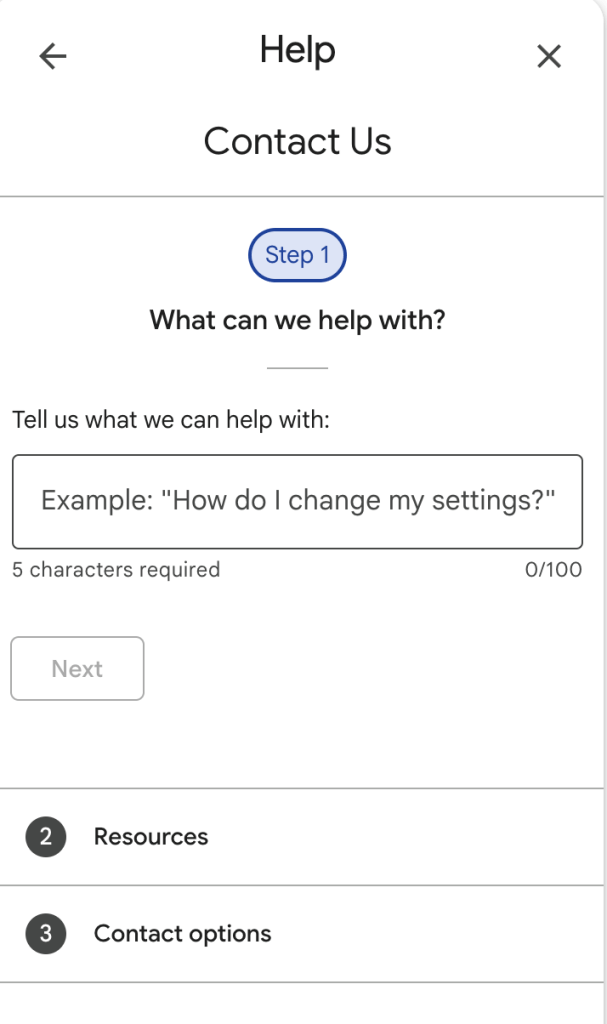
Start by opening a ticket. Click on "Support" in the left navigation of the Google Business Profile Manager. Then, work your way through the questions under Contact Us until a ticket has been submitted:
What’s Next?
Now that your Google Maps listing is in order, you are ready to grow the traffic to your website and storefront. Join our guided SEO community for access to our courses and community.
SEO Checklist for Local Businesses
Follow a clear, step-by-step checklist to increase your visibility on Google. This checklist is designed for local and small businesses, along with web designers and agencies. Learn and do at the same time.